
My scanner is not scanning
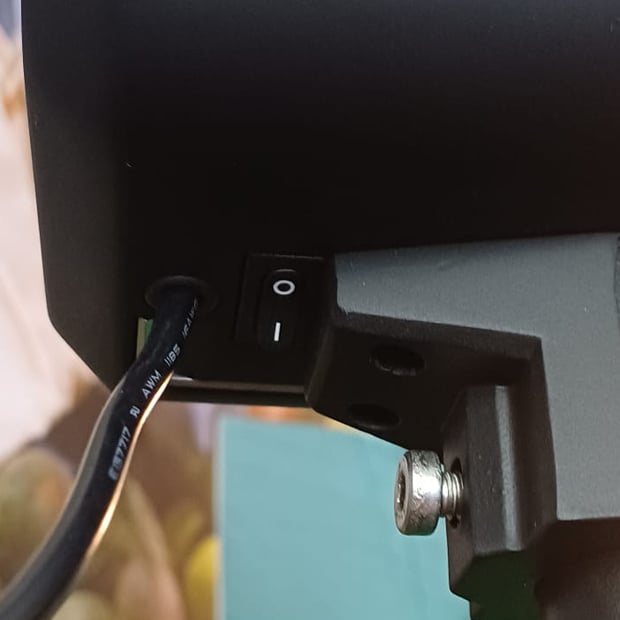
The LED ring should light up bright green. If it is not lighting up, the scanner is not receiving any power.
If this is the case:
-
Confirm that the scanner is connected to an outlet and that this outlet provides power.
-
Toggle the power switch which is located on the bottom of your Avocado Scanner.
Now, the LED ring should light up green. If the problem persists, please contact us using the form below.
My screen stays blank
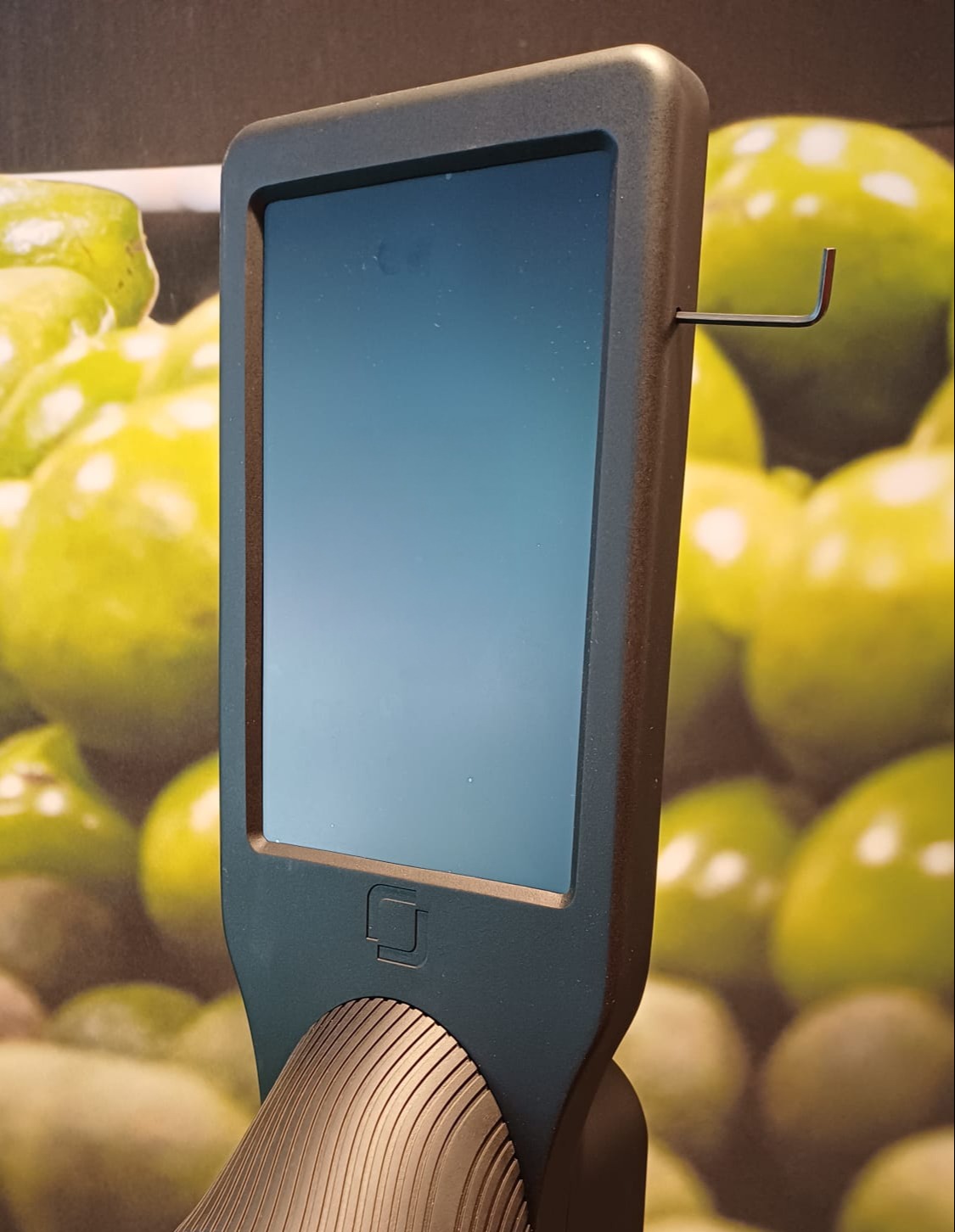
In case of a blank screen, the screen most likely hasn’t been turned on. This can happen if the scanner was without power for a period of longer than a few hours.
You will need a small Allen key, or a toothpick or paper clip to start the screen.
-
Confirm that the scanner is connected to an outlet and that this outlet provides power.
-
Insert the key at the top right side of the Avocado Scanner. Press and hold, until the screen starts and the Samsung logo appears. After the start-up, the system will start automatically.
-
If the screen doesn't start immediately, we advise to wait until the charging symbol appears on the screen, and then try again. This can sometimes be an issue due to internal battery depletion.
If the problem persists, please contact us using the form below.
My scanner gives wrong results
If your results seem off, this can be the result of the sensor not receiving an adequate reading. This may indicate that the scanner requires cleaning or has a damaged / missing part.
Please verify that:
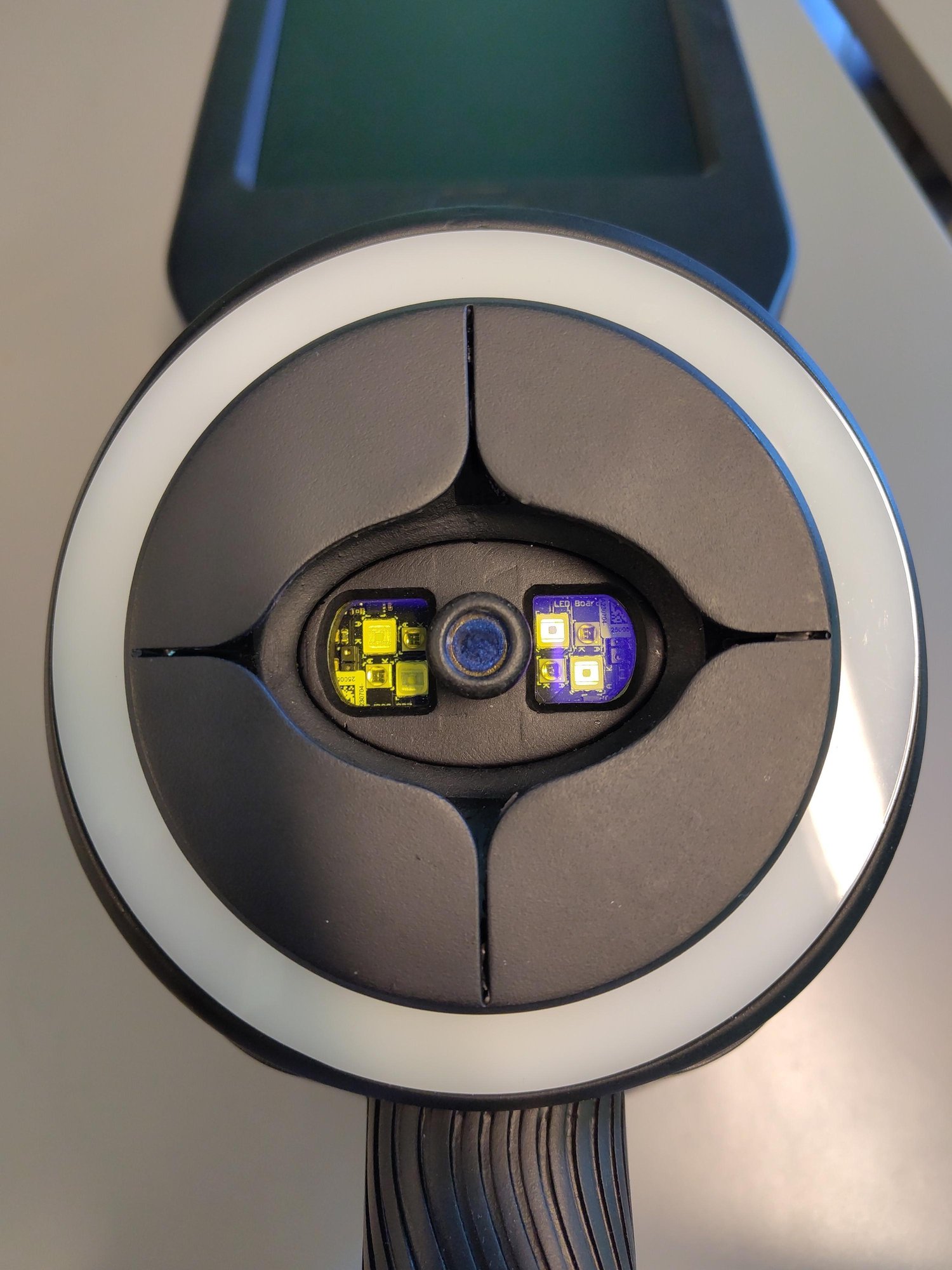
- The bumper (the part of the sensor that can be pressed) is present and contains a protective glass. If this is missing, please contact us using the form below.
- The glass that covers the LED light sources is clean.
Cleaning instructions:
For best results, clean the glasses of the sensor and LEDs weekly with a lukewarm wipe. Important: do not clean the sensor with glass cleaner or any other substance.